
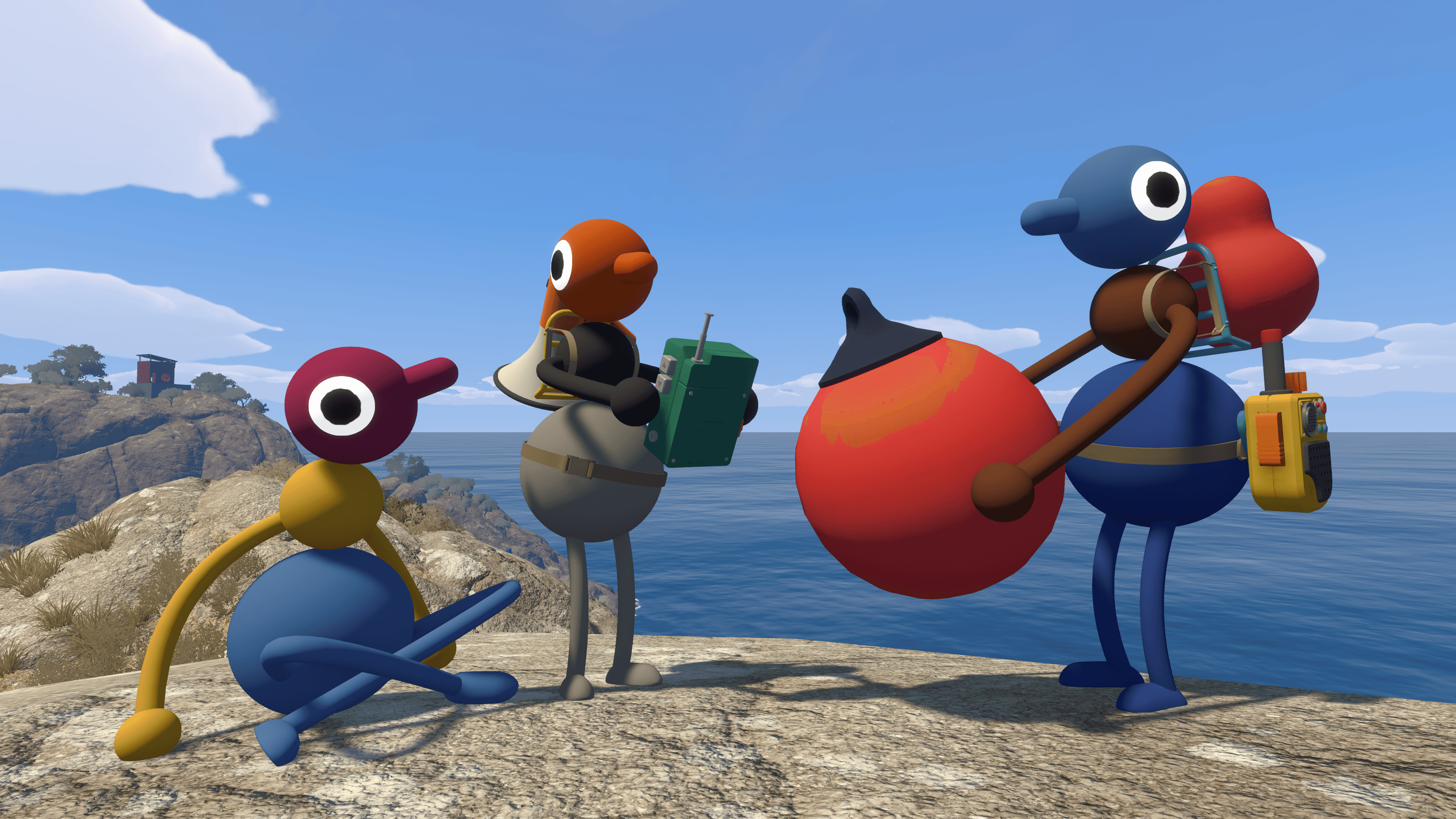
Big Walk is an online cooperative adventure for 2–12 players. For a smooth first session, gather your group before launching, choose a reliable host who can return for future sessions, select the world version for the smallest number of players you expect to keep, and use the game’s built-in voice or text chat.
- Players
- 2–12 online
- Crossplay
- Supported
- Matchmaking
- Not available
- Progress
- Saved by host
What You Need Before Starting
You need at least two players, an internet connection, and a copy of the game on a supported platform. Big Walk is available on Windows and Mac, PlayStation 5, and Nintendo Switch 2, with crossplay between systems. There is no public matchmaking, so arrange your group in advance.
Choose the Host Carefully
The host owns the save and all world progress. Other players can join only after the host starts the session, and everyone is disconnected when the host leaves. Use the same host when your group wants to continue the same journey later.
Choose the player with the most stable connection and the best chance of attending future sessions. If the host has serious performance or network problems, every player may feel the effects.
Pick the Right World Version
When the host starts a session, Big Walk asks for a 2-player, 3-player, or 4+-player version of the world. This setting changes how some challenges are configured; it does not cap how many people may join.
Treat the selected number as the minimum group you expect to have consistently. If four friends begin together but only two are likely to finish every session, choosing the 2-player version avoids configuring later challenges for absent players.
Invite Your Friends
Friends on the same platform service may see the host’s active game automatically. For cross-platform groups or players who are not platform friends, use the Join Code shown in the host menu. After the world starts, the host can find it again under Session Details.
Session passwords are required in version 1.4.9 and later. Do not expose the Join Code or password while streaming, because anyone who knows them may be able to enter the session.
- Have the chosen host create the session and select the world version.
- Share the Join Code and password privately with the group.
- Wait until every player has loaded into the host’s world.
- Confirm that built-in voice or text chat works before leaving the opening area.
Use the In-Game Communication
Big Walk builds puzzles around distance, walls, walkie-talkies, and other limits on communication. Use the built-in voice or text chat instead of a separate call. Text chat follows the same intentional range and obstruction rules as voice chat, so a microphone is helpful but not required.
Before moving on, ask everyone to describe symbols, positions, colors, and landmarks clearly. A short countdown is useful when a puzzle requires simultaneous actions.
Decide How Much Help You Want
Start by exploring together and talking through what each player can see. This beginner guide intentionally avoids puzzle routes and solutions so your group can discover the opening challenges without spoilers.
If you get stuck or prefer an ordered walkthrough, move to the All Puzzles Guide. Use the Map Guide after your group decides that navigation help is more useful than blind exploration. Those pages are marked Bounded because their progression details rely on community walkthrough evidence.
Saving and Returning Later
Progress saves automatically to the host’s world. When the group returns, the same host must start that save before everyone else reconnects. A different player cannot take over the original world merely by hosting a new session.
Players only need matching first and second version numbers to connect. For example, versions 1.4.9 and 1.4.10 are compatible according to the official FAQ.
Fix Common First-Session Problems
If a friend cannot join, confirm that the host is already loaded into the world, all devices are online, and their system clocks are accurate. Fully restart the game if the session still does not appear.
If voice chat fails, check Settings > Audio and verify microphone activity. On macOS, confirm that Big Walk has microphone permission under System Settings > Privacy & Security > Microphone. PlayStation 5 users should make sure “Mute Game Voice Chat” is turned off in the console Sound controls.